Do Daily Tips
Procedure
Count drop and tip bags, and verify amounts are correct.
Use the “Tips Distribution Worksheet” Google sheet. Start with a blank sheet by going to the Tip Functions menu and selecting “Reset sheet.”
In the Arryved portal, go to Reporting->Sales->Sales Activity. Select the correct day, then download and open the .csv file.
Make sure the date/time column is wide enough. If it isn’t, you’ll see “######” in place of the correct data. Widen the column until the date and time appear.
Copy all of the contents of the .csv file, and paste into the “Reporting - Sales Activity” tab in the Tips Distribution Worksheet.
Repeat this process for the Reporting->Sales->Purchase Items report: download the .csv file, then copy the contents into the corresponding tab in the tips worksheet.
The credit card tips should now be in the worksheet. Enter in the cash tips and employee hours from Homebase.
Look for “Cash Due” on the bottom of the closeout slip. If the number is negative, take that amount out of the safe. If the number is positive, put that amount in. The “Change Needs” section of the “Scratch” tab will tell you which bills you need.
Enter your initials.
Go to the Tips Functions menu and select “Save to ODS”.
Go to the Tips Functions menu and select “Save totals” to save the numbers into the totals sheet.
Print page 4.
Staple the tip slip to the printout and put it in the binder.
Staple the Closeout slip, shift report slips, and cash box slip, and drop it in the middle desk drawer
Troubleshooting
Tip totals not populating in worksheet
Check the two Reporting tabs and make sure the time/date columns aren’t all ####. If they are, go back to the .csv file, widen the column until the data appears, then copy again.
“Authorization Required” message
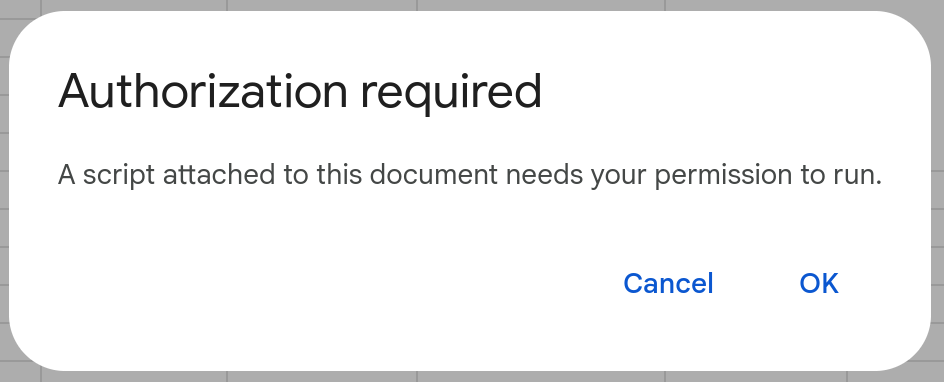
If it’s the first time you’ve used the sheet, you might get this message when trying to use the tip function menu:
Authorization required
Click ok, then sign in if prompted. You’ll get a warning message. Click “advanced” in the bottom left corner.
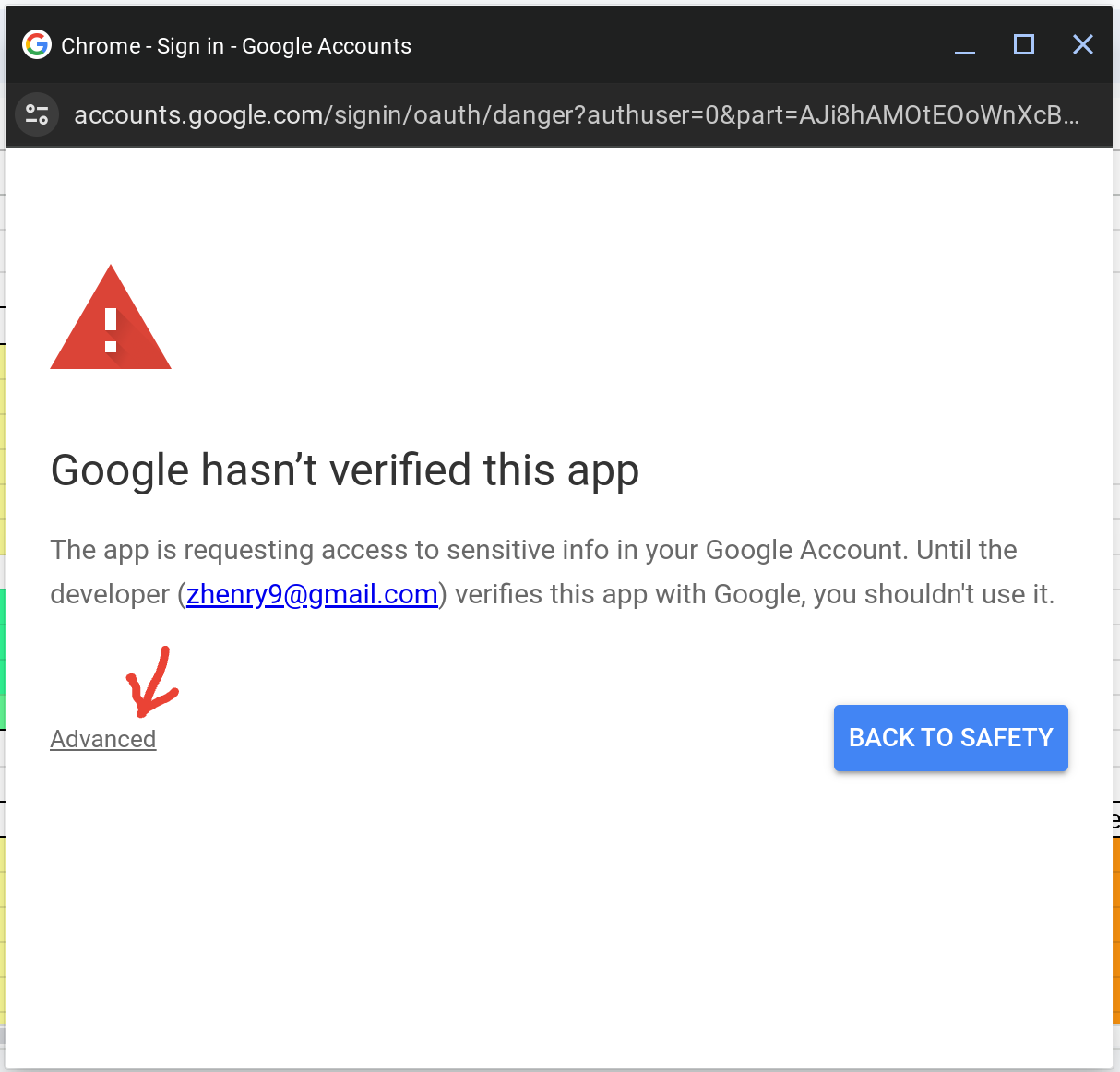
Danger!
Next, throw caution to the wind and click “Go to Untitled project”
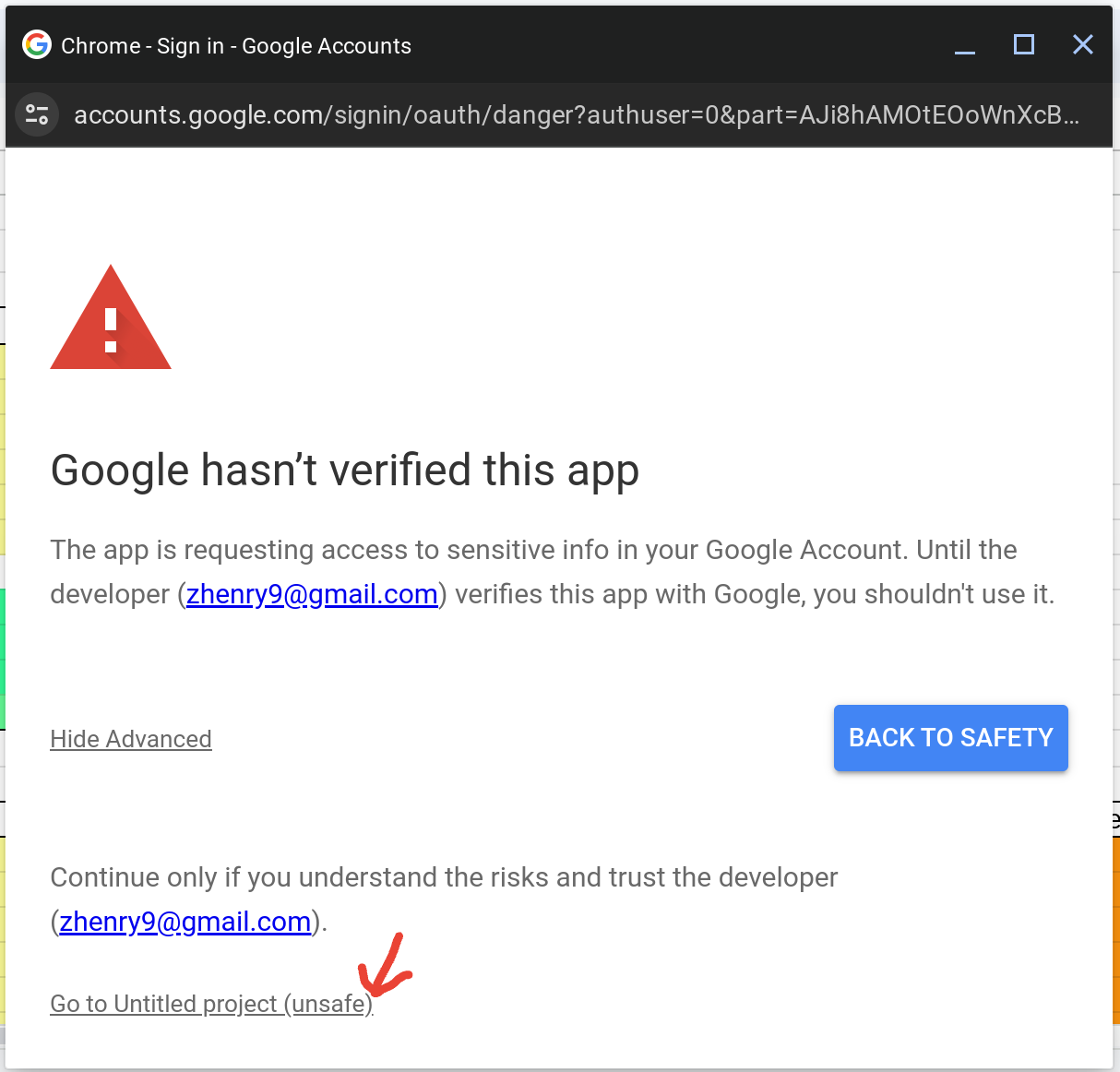
Full steam ahead.
On the next screen, click allow. The tips menu should now be functional